Crosslist & Split allows an instructor to manage their course sections effectively by either combining multiple course sections into a single course shell, separating them into different course shells, or combining and splitting. This tool is designed to streamline the process of course management, ensuring that instructors can handle various teaching scenarios efficiently.
Students from different courses combined by cross-listing will be enrolled in new, separate groups in a new Moodle course shell. Posting grades in the new Moodle shell will submit correctly for each section without extra steps.
NOTE: It is recommended that you crosslist or split your course(s) before importing materials or making any changes in the course(s). When the new course is created, any content will not carry over, and your original courses will be removed from Moodle. Once your new course(s) is created, you can then import or add any content.
This process has multiple steps, so if you need assistance, contact the Faculty Technology Center (225-578-3375, option 2 or ftc@lsu.edu).
Not What You Are Looking For?
If you would like to incorporate lecture and lab sections of a course, see Moodle: Crosslist for Lab Sections (GROK #20688).
If you would like to incorporate undergraduate and graduate courses, see Moodle: Crosslist for Undergrad and Graduate Courses (GROK #20691).
If you would like to combine across terms (LSU A&M and LSU Online), see Moodle Cross-enrollment (GROK #20544).
If you would like to combine courses with another instructor, see Moodle: Team Teach Request (GROK #20174).
If you would like to undo a crosslist or split course, jump down to Undo Crosslist & Split Course.
To Initiate a Crosslist & Split:
- Navigate to the home page of Moodle. This block is not visible while on a course page.
- Click on Crosslist & Split in the Workday Preferences block in the blocks drawer in the right sidebar menu.
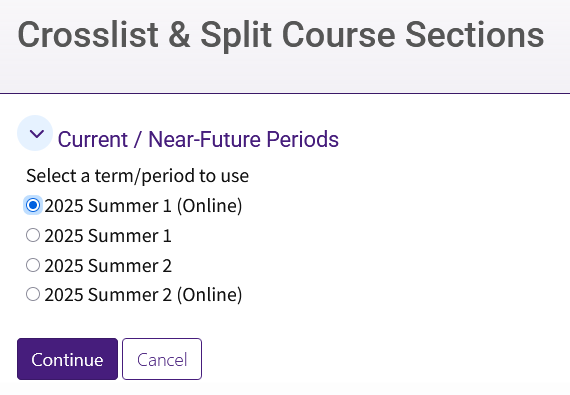
- Select a term/period to use and then click Continue. This list will only show current and near-future terms.
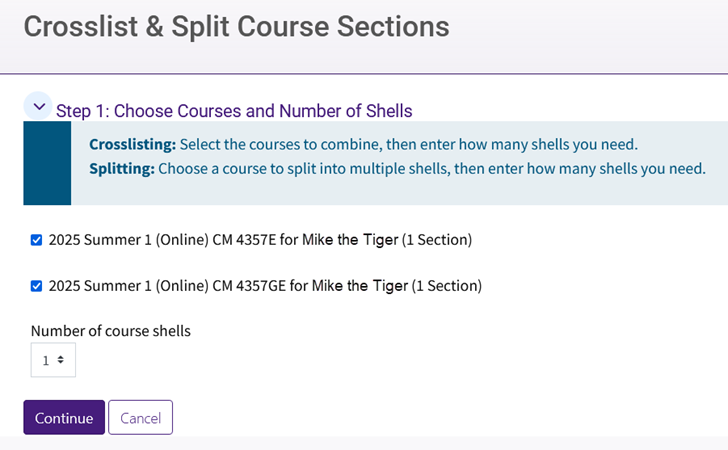
Step 1: Choose Courses and Number of Shells
Click the box(es) next to the course(s) with the sections that you want to crosslist or split, then enter the number of new Moodle course shells. Then click Continue.
- To crosslist multiple courses together, select the courses to combine and enter the number of course shells that should be created. Often this will be one (1) new course shell.
- To split a course with multiple sections, select the course(s) to split and enter the number of course shells that should be created.
- See the tip at the bottom of the article to learn more about using both crosslist and split together.
Step 2: Assign Sections to Shells
The sections associated with the previously selected course(s) will be listed under Available Sections.
- Select a section from the Available sections on the left. Then, click Add to Shell to move it to the top new Moodle course shell.
- If you designated more than one new course shell to be created, you will see each course shell as a separate Course Shell box. Select the next destination Course Shell box on the right before selecting the section(s) to assign there.
- Repeat until all sections are correctly arranged.
- Leaving sections in the Available Sections box will leave those sections in their original Moodle course shell.

- Click Submit to create the new Moodle shell courses.
NOTE: The course shell(s) will be created immediately. The students will be enrolled during the next scheduled enrollment processing.
Tips for Using Crosslist and Split Together
Crosslisting and splitting can be used together. For example, you can use it to split a section off one course and crosslist it into another course.
- To use both processes, select all courses with sections that you would like to rearrange and then enter the total number of courses you want to create.

- Arrange the sections into the new Course Shells. In this example, the section 001 from the undergraduate course is crosslisted together with the section 001 from the graduate course. In the second course shell the two 003 sections are being crosslisted together into a different new shell.
- The text box with Shell 1 and Shell 2 under the title in the new Course Shells boxes allows you to customize what is in the parentheses at the end of the course name. In this example below, Shell 1 was changed to Section 001 and Shell 2 was changed to Section 003.

Undo Crosslist & Split Course
- Navigate to the home page of Moodle. This block is not visible while on a course page.
- Click on Crosslist & Split in the Workday Preferences block in the blocks drawer in the right sidebar menu.
- Below the Current / Near-Future Periods, you will see your existing crosslisted and split shells. Click View Sections.

- Double check the selected course sections, as this will abandon the newly created course. Then click the Undo Crosslisting & Splitting button.
