Moodle: Team Teach
The Team-teaching tool in the Workday Preference Block allows an instructor to invite other instructors to add one or more of their sections into the requester's existing course shell. This process uses a target course shell rather than creating a brand-new shell, and the selected sections are moved into that target shell when the request is approved.
Before You Begin
- You must have a target course shell that will receive the additional section or sections.
- Use Cross-list or Split first if you need to reorganize your own sections before sending a Team-teach request.
- You cannot send a Team-teach request to yourself. See Cross-list or Cross-enroll.
- Sections that are already cross-listed, split, cross-enrolled, or already part of Team-teaching are not available to request.
- An existing cross-listed or split shell can be used as the target course shell, but a section that is already cross-listed, split, or cross-enrolled should not be requested into another shell.
To Initiate a Team-Teach Request:
- Navigate to the home page of Moodle. This block is not visible while on a course page.
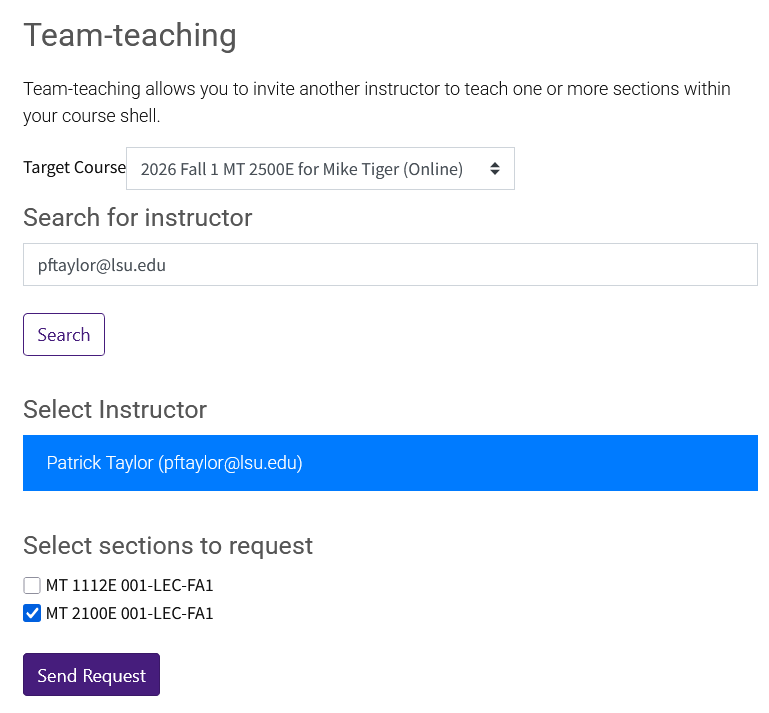
- Click on Team-teaching in the Workday Preferences block in the blocks drawer in the right sidebar menu.
- Select the target course shell that should receive the additional section or sections.
- Search for the instructor by first name, last name, or email address.
- Select the correct instructor.
- Select the eligible section or sections you want to request.
Click Send Request. After you submit the request, the system sends a Team-teach invitation email to the invited instructor.
Note: This tool reveals the next field after each selection, so your initial screen may differ from the completed view below. This is expected.
What the Invited Instructor Receives
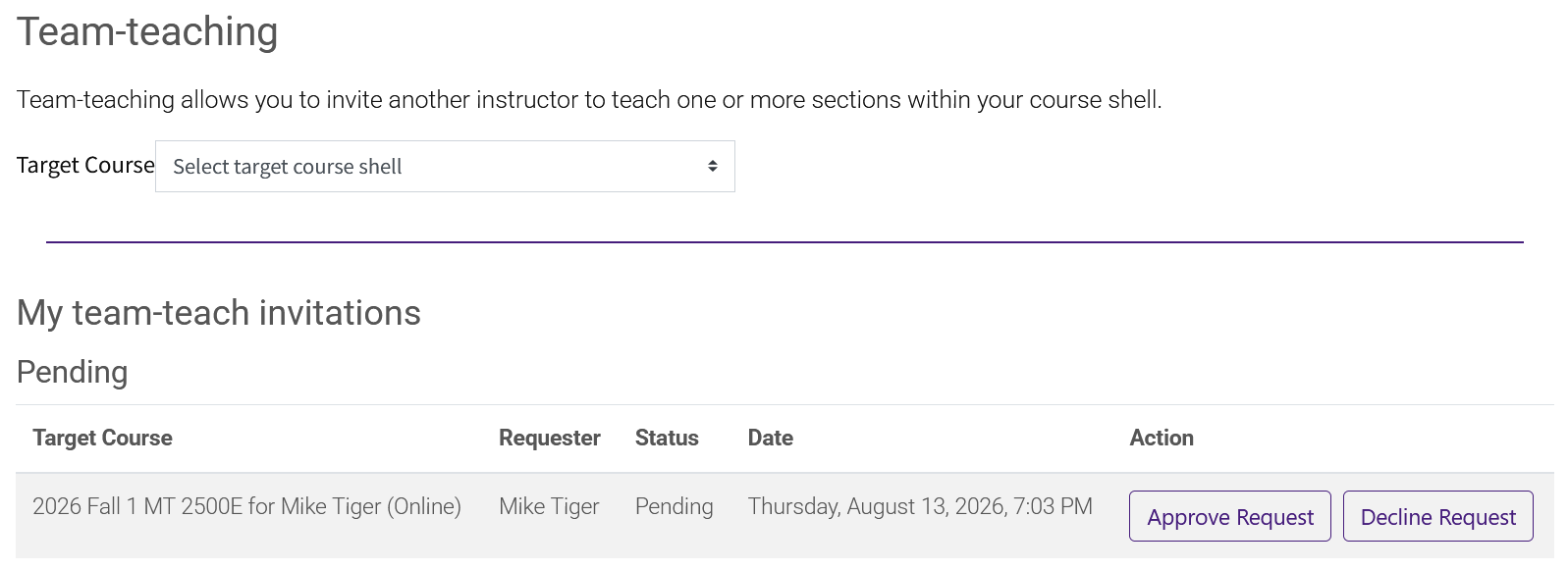
The invitation email tells the invited instructor who made the request, which section or sections of theirs are being requested, which target course shell will receive them, and includes a link to approve or decline the request. The approval link expires after 48 hours. The invited instructor can also navigate to the Team-Teaching menu to find the request.
Approve or Decline a Request
When the invited instructor opens the link, they can review the request details and choose Approve Request or Decline Request. Approving the request merges the requested sections into the target course shell. Declining the request cancels the process and no merge occurs.
Important Notes and Limits
- If you only need one section from another instructor's multi-section course, use the section-selection step to choose only the needed section or sections.
- The requested sections move into the target shell; they are not duplicated into both places.
- With Team-teaching, any primary instructor in the course can post grades for all sections of students. It is encouraged to discuss with your co-teachers how posting grades will be completed.
- Team-taught sections and shells are restricted from later cross-list, cross-split, or cross-enroll actions.
- If a request is still pending, requesting instructors will see the request as pending in the team-teach menu until it is approved or declined.
20716
8/18/2026 1:26:44 PM