Moodle: Groups and Groupings Overview
The Groups and Groupings Overview page allows the view of all current student groups as well as groups of groups ("groupings") and is an exhaustive list.
To Access the Groups and Groupings Overview Page:
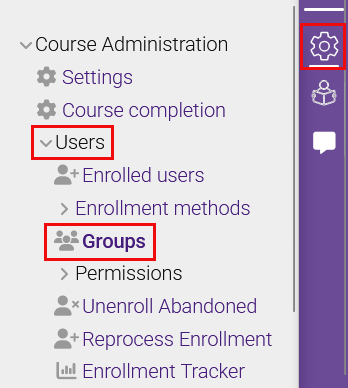
- Click the Admin gear to the upper right of your course page, then expand Users and select Groups.
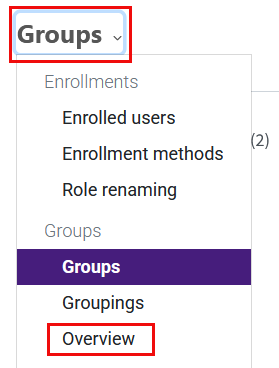
- The Group management tool will open. Click on Groups in the upper left to access a drop-down menu, then select Overview.
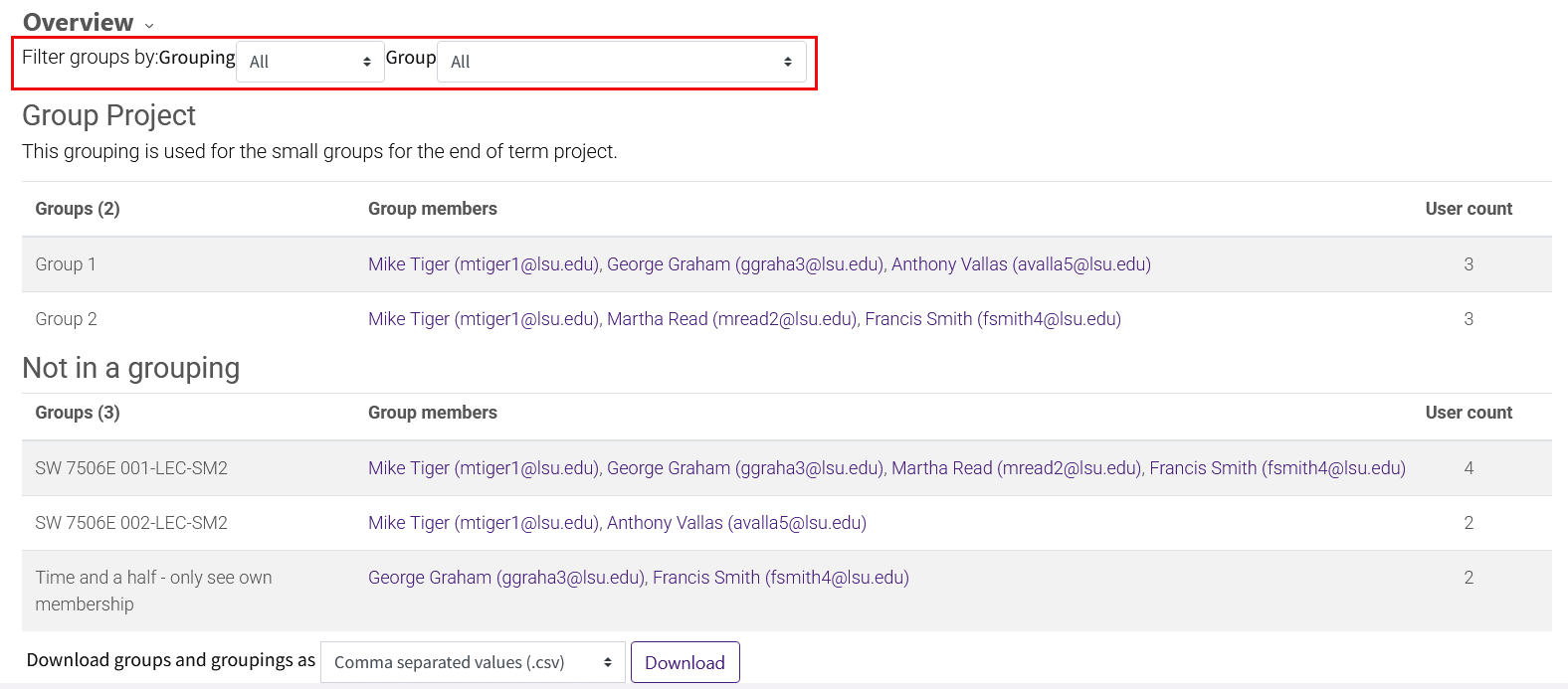
- This Overview page displays all groups, including the users they contain, within their corresponding groupings. The list is exhaustive, so users in more than one group will appear more than once and groups in more than one grouping will also appear more than once. The output can be filtered by grouping and/or group. However, changes to group or grouping membership cannot be made here. You must select Group or Grouping from the dropdown to change membership.
Related GROK articles
20253
3/17/2026 4:33:09 PM