In some LSU Moodle courses, exams are administered through a third-party publisher site. This means that students take exams in the publisher site and not in the Moodle site with a quiz activity. Most third-party tools are added to Moodle as an LTI external tool. The most commonly used publisher external tools in Moodle are:
- Pearson
- Cengage
- Macmillan
- McGraw-Hill
- Sage Vantage
- Wiley
This article covers the following topics. Click on a topic to jump to that section of the article:
To Set Up Honorlock for Third-Party Exams:
Note: Third-party exams must be set up for proctoring as a separate exam instance through the Honorlock external tool in a Moodle course. See instructions for adding the external tool in article 20058, Moodle: Add an LTI External Tool. Students must click on the Honorlock tool to take third-party exams for your course.
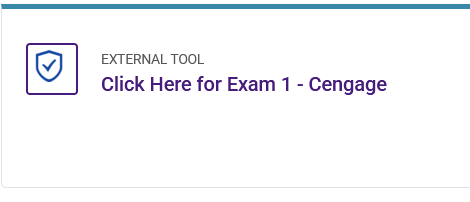
- Add the Honorlock tool to your course for each third-party exam. Make sure you have given each one a descriptive name so students know to click it at exam time.
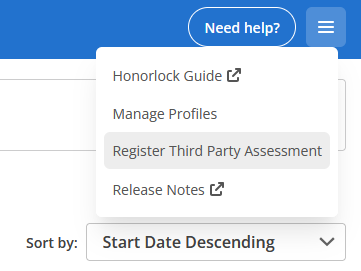
- Inside the Honorlock external tool, click on the menu in the top right corner of the dashboard and select Register Third Party Assessment.
- On the registration screen, you will set the following:
- Email Notifications: Add any other email addresses for people who need to receive notifications for this exam. Also check to make sure your email address is listed correctly.
- Admin Settings: Name your assessment and set the exam window. For the Assessment Platform, you will select Access through the LMS*, select a platform, or add another third-party platform and provide a direct URL (optional). Add the password that you have saved in the third-party site for this exam. Do not share this password with the students. Honorlock will input this password once the students have arrived on the password page.
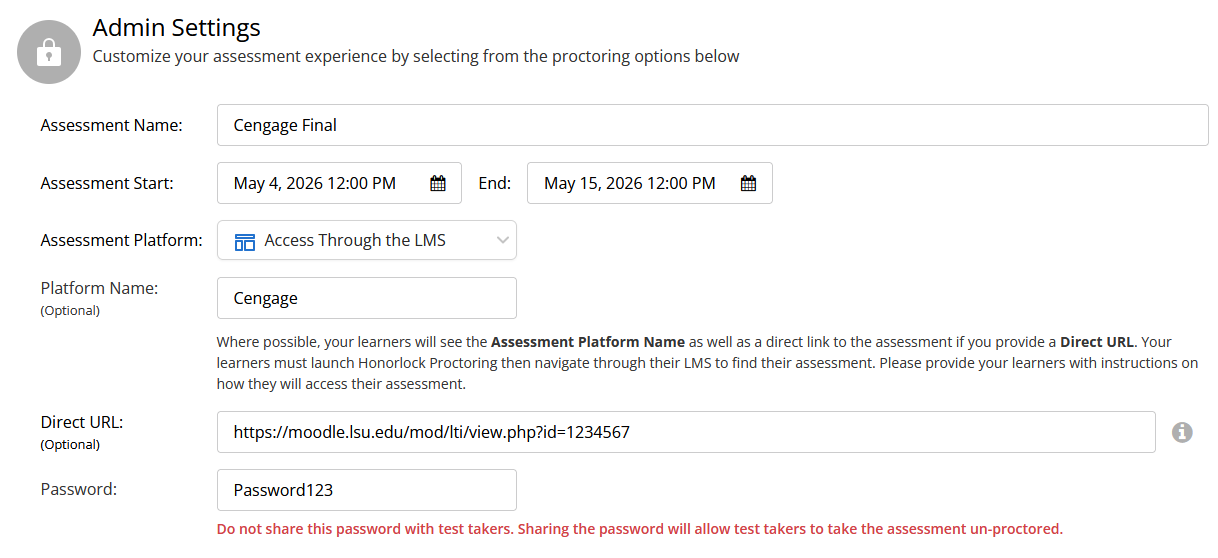
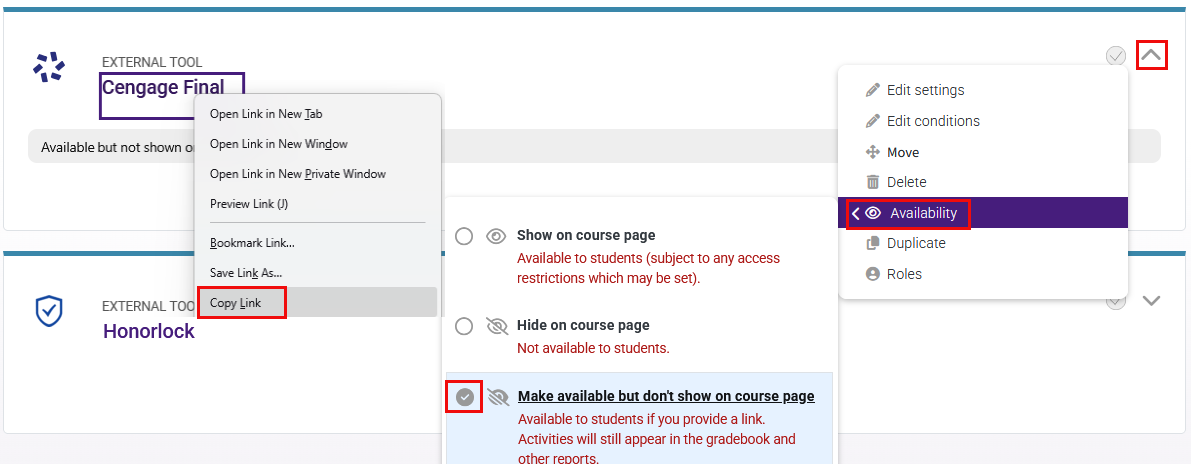
*For the Assessment Platform, if you use the platform's LTI, you will need to select Access Through the LMS. Selecting the platform from the dropdown list will direct the students to the platform's login, prompting them for a login they likely do not have. If you are using the platform's LTI, we recommend copying the link to the platform's LTI exam activity and pasting it in the direct URL location in Honorlock's Admin Settings. Then, after sharing the direct URL in this Honorlock location, you can set the platform's LTI exam activity to make available but don't show on course page.
- Proctoring Settings: Here you will set the technical proctoring conditions during the exam. Review each option for your situation.
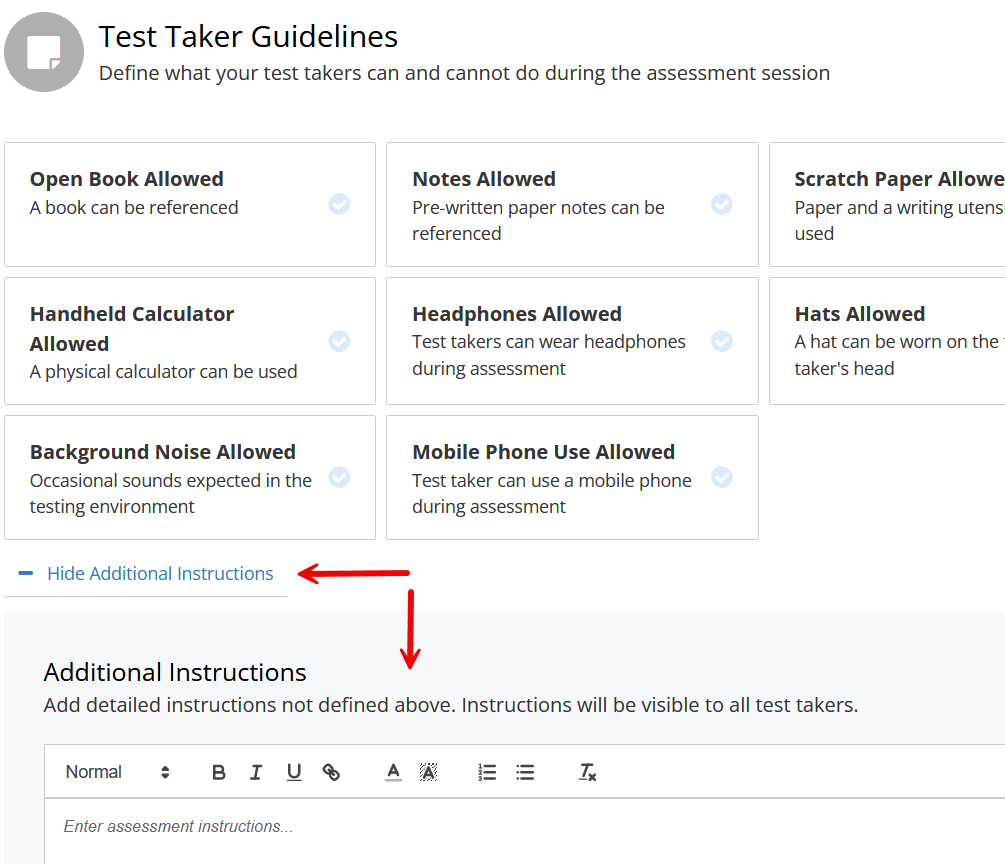
- Test Taker Guidelines: Here you will set allowances and restrictions for your students. If you would like to include written instructions, open the Additional Instructions text box beneath the blocks.
- Assessment Accommodations (if necessary): If you have students who need accommodations that cannot be managed in the third-party exam, enter their information here. Accommodations for time, such as time-and-a-half, should be set as an accommodation in the exam settings on the third-party site.
- Assessment Visibility: Determines whether the students can view the assessment on their Honorlock dashboards outside of the exam window.
- Click Create.
- You will see the new exam at the top of your assessment list with buttons for Results (your students' exam sessions) and Settings, which you can edit.

How Students Access Third-Party Exams Using Honorlock
In your course materials, direct your students to click on the Honorlock external tool when they are ready to take an exam. Scheduling is not necessary for Honorlock proctoring.
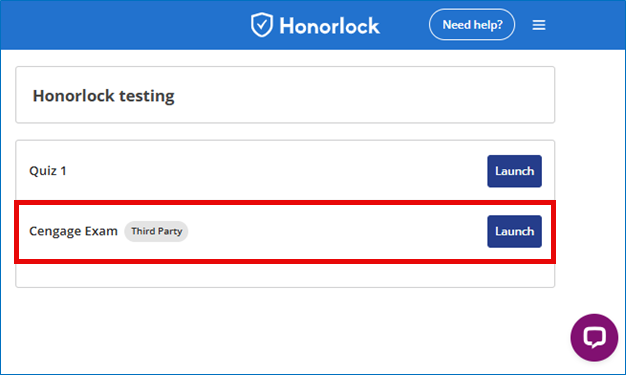
- Students must select Launch on the correct exam. On the dashboard, students will see all exams available for launch. If there is more than one quiz set up for proctoring, be sure to give them descriptive names so students will know which to choose. Third-party exams will also be labeled.
- On the next page, students will agree to the Data Collection and Use statement that appears. This will continue to an optional system check that will test compatibility with Honorlock.
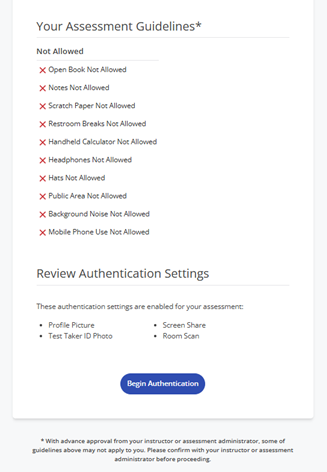
- Students should review the assessment guidelines, which are a list of prohibited items and behaviors. They should read the required settings for authentication, then click the Begin Authentication button to start the process.
- Students then proceed through authentication and setup. Eventually, there will be an Open Site button to access the exam. This will open in a new tab.
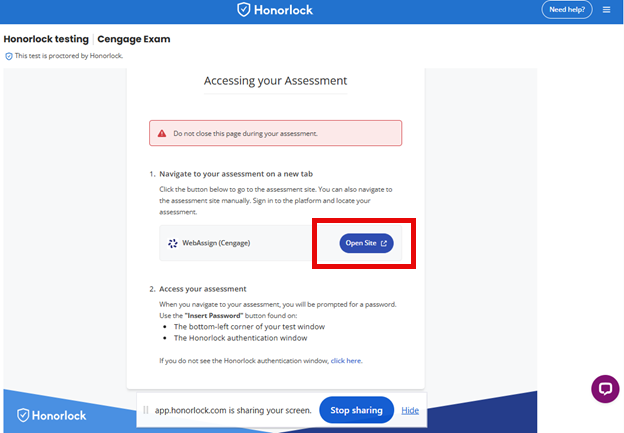
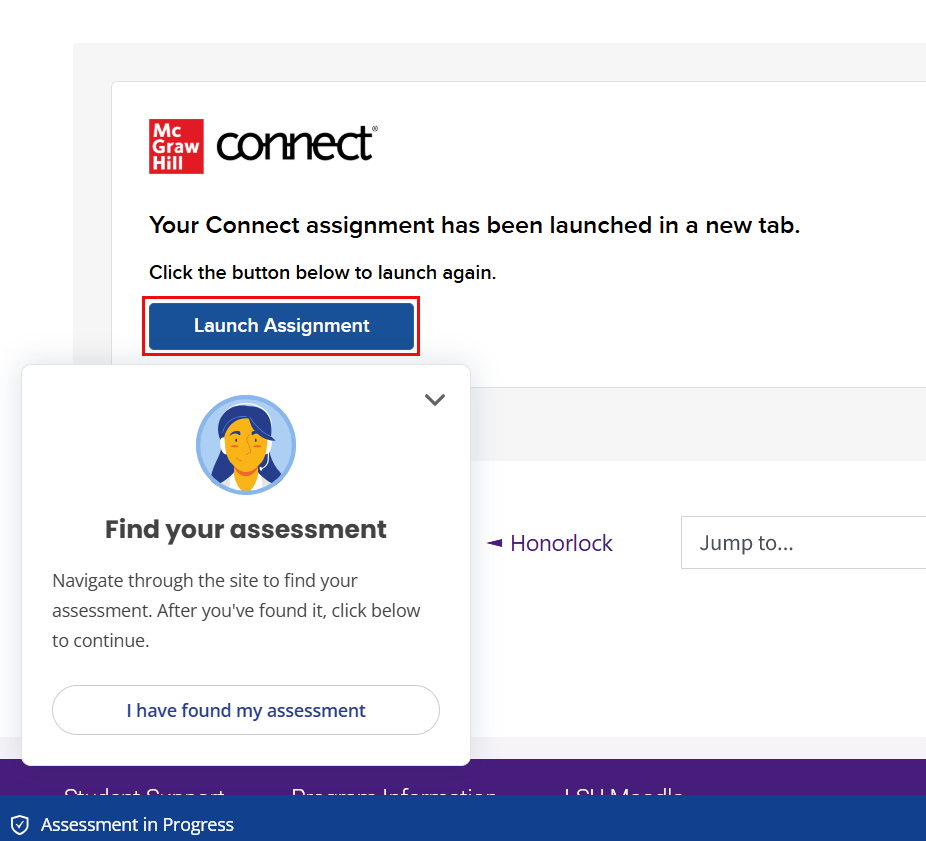
This will open the link shared in the Direct URL location of the Admin Settings. Students may need to navigate further to access their exam on the platform's site. For example, if the platform LTI activity link was entered as the Direct URL, students will see the activity within Moodle and will need to click through to the platform. The Honorlock tool will show a pop-up window for students to notify Honorlock once they have found their assessment. Prior to the password being entered, students are able to navigate the internet freely.
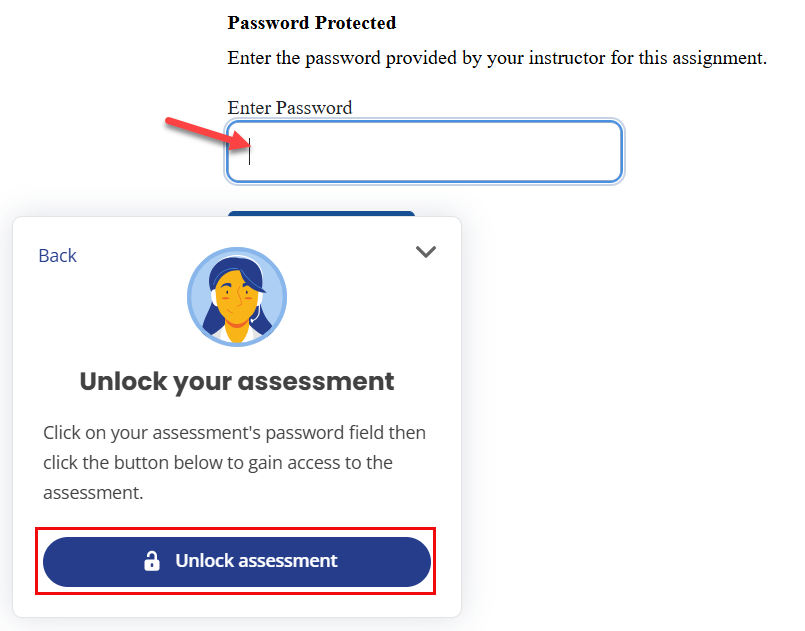
- Once students have found the password prompt on the publisher site, they should click the Honorlock Unlock assessment button, which will enter the exam password.
During the exam, Honorlock displays a menu along the bottom of the screen for accessing chat support, an option to minimize, a reminder that recording is happening, and an Exit Honorlock button.
- When finished with the exam, the student should click Exit Honorlock. After confirming the pop-up message, the proctoring session will end.
- This exam attempt will now appear in the Honorlock external tool for the instructor to review by clicking Results next to the exam name.
Setting up ProctorU for Third-Party Exams
If your course uses ProctorU (Meazure Learning) Live+ or Review+ services for third-party publisher exams, you must set up proctoring on the ProctorU LSU Baton Rouge site. These exams cannot be set up using the ProctorU LTI external tool.
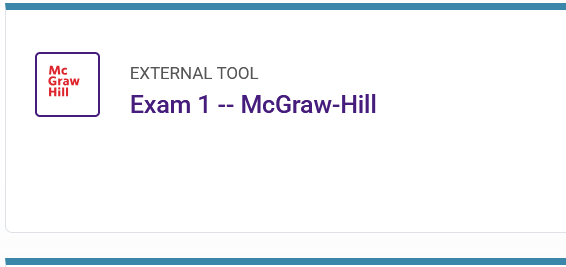
Direct students to log in to both ProctorU and Moodle at exam time to begin their exam session. In your course, there must be a link to the exam in the third-party site for your students to click at exam time.
First, add the external tool to your course page:
Then, set up third-party exam sessions at ProctorU:
- Log in at the ProctorU Baton Rouge site.
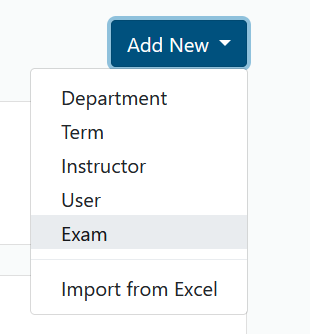
- Click on the blue Add New button at the top right of your page and select Exam.
- Fill in the required (asterisked) information:
- Exam Title: Be as descriptive as possible so that students can easily find the exam in a search. The following naming convention is recommended: Program_Moodle Course Name_Exam Name_Third-Party Tool Name. Example: LSU Online_2025 Summer 2 MATH 1021E for Mike Tiger (Online)_Final Exam_Cengage.
- Department: This selection will determine the proctoring service line and price per exam (prices apply to LSU campus students only). For an explanation of pricing, see article 20564, ProctorU: Information for Instructors.
- Instructors: Add yourself and any others in course instructor roles.
- Term: Select the current term.
- Duration (minutes): The exam duration in minutes. This is not the same as the exam window.
- Exam URL: To add your publisher site URL, click Add URL and enter the site address. Make sure Open on exam launch? is checked. Example: https://www.cengage.com.
- Exam password: Enter the exam password set at the third-party publisher site. Confirm the password in the next text box.
- Permitted resources: Select resources you will allow students to use during the exam. If none, select No resources allowed. You can also type a description of resources in the Other resources area if you do not see your allowed resource listed.
- Expected No. of Test-Takers: Enter the number of students expected to take the exam. This will help you keep track of who has scheduled and completed exam sessions.
- Additional Exam Notes: Type any other information you want proctors to know about your exam process. For example, detail calculator models, special instructions for the publisher site, or any other prohibited items or behaviors.
- Notify on Schedule Emails: Enter email addresses for anyone who wants to be notified when a student schedules an exam.
- Contact Info for Exam Issues: Should any problems arise during exam launch or the exam session, this person will be the point of contact and should be available during the exam window.
- Windows: This is the official exam window during which appointments will be available for scheduling. The first time should match when the exam opens in Moodle, and the last time should correspond to the exam close time minus the exam duration. For example, if the exam closes in Moodle at 8:00 p.m. and the exam duration is two hours, the last appointment time should be 6:00 p.m.
- Submit your exam for review. When your exam entry is approved, you will receive an email. The approval process takes 24–72 hours.
Additional Steps for Student Accommodations Using ProctorU
When you are notified that one of your students has registered accommodations with LSU Disability Services, you must submit an accommodation request to ProctorU. After applying settings for the approved accommodations in the third-party exam, submit a request for accommondations at the Meazure Learning site. This must be done prior to the start of the exam window. Provide the following information in your request:
- The student's name and email address in ProctorU
- The course and exam name
- The accommodation(s) approved by Disability Services
- Any other details, if necessary
You should submit accommodations to ProctorU no later than 72 hours before the exam window opens. You do not need to provide any information about the student's disability.
How Students Access Third-Party Exams Using ProctorU
In your course materials, direct your students to navigate to both the Moodle course and the ProctorU site when they are ready to take an exam. Students should have already scheduled their sessions before they sit down for the exam session.
- Students should log in to the Moodle course and navigate to the exam link.
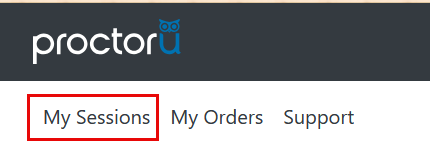
- Then, they will log in to the proctoru.com site and click on My Sessions at the top left corner.
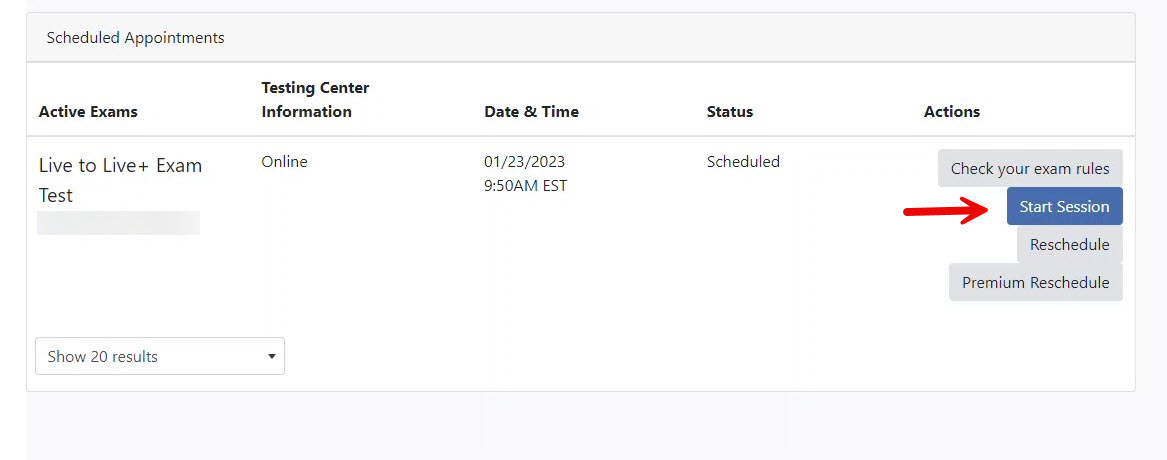
- In the Scheduled Appointments box, students can click on the Start Session when ready to begin.
4. At this point, the proctor will begin exam launch.