Moodle: Gradebook: How to Use the Smart File Importer
The Smart File Importer allows instructors to quickly upload grades to one graded item in Moodle by using a .CSV or .TSV file.
Smart Importing Grades to Moodle
When using this importer, please note the following:
- Multiple files may be uploaded at once, and they can be of different file types.
- A graded item will need to be created in the gradebook before the grades are uploaded.
- For the import to work from a .CSV file, there can be no empty cells or cells with a dash (-).
- Grades in the file can be in any of the following formats: 090.00, 90.00, 90.
There are three ways the Smart File Importer automatically maps grades to Moodle in the .CSV or .TSV file:
- Email address. To import using email addresses, create a file with the following columns:
- Required columns: email, grade
- Optional columns: any number of fields (e.g., firstname, lastname, username, date, time). Note that the .TSV file format may change to .TXT when other fields are included, which will work.
- Universal ID/Workday ID. To import using UID, create a file with the following columns:
- Required columns: UID, grade
- Optional columns: any number of fields
- 89-number. To import using 89-number, the file format must be .CSV and must have only two columns: 89-number and grade.
- This method will work with files exported by the Office of Testing and Evaluation Services at the LSU Testing Center.
To Use the Smart File Importer:
- In your course, open the Course Administration menu (gear icon) in the sidebar and click Grades.
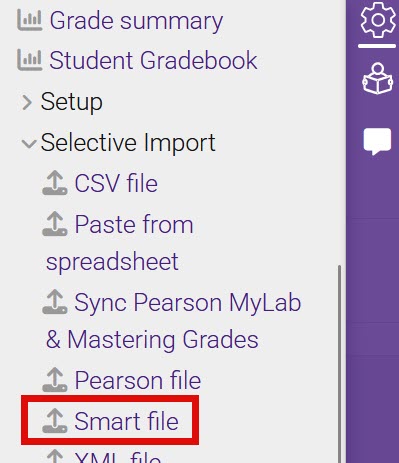
- On the gradebook screen, open the Grade administration menu (gear icon) in the sidebar and open the Selective Import header. Then, click Smart file.
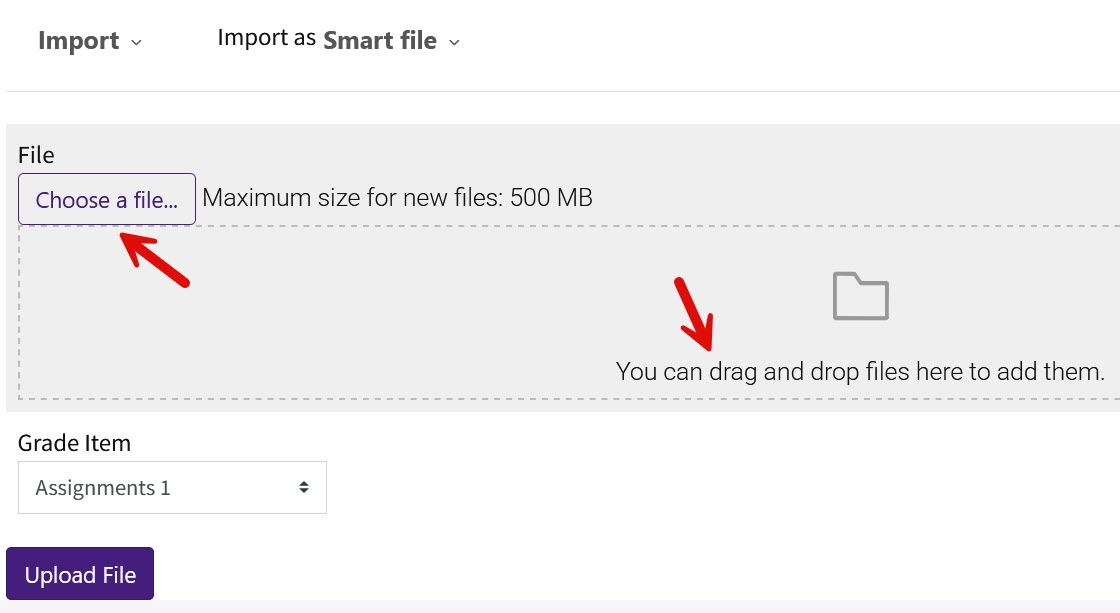
- There are two options for uploading a file. You may drag and drop a file into the area provided, or you may select the Choose a File button at the top left. After selecting your file via either method, click the Upload File button.
- After the upload completes, click Continue to return to the Gradebook. Note that if the importer cannot recognize the file format, you will see an error. Click Continue to return to the gradebook and fix the format of your file to try again.
Resources
For more information on the Smart file importer, see the following documentation:
20359
2/18/2026 11:55:26 AM