Text OnlyLogin to PAWS Baton Rouge, Louisiana |
LSU Logo GROK Logo Tech Fee Logo
               Login
md
 
There are now 12019 articles in GROK!

 Moodle Categories


 Moodle: Overview

Moodle is a course management system (CMS) - a software package designed to help educators easily create quality online courses. Such e-learning systems are sometimes also called Learning Management Systems (LMS) or Virtual Learning Environments (VLE). This Web-based system officially replaced the LSU Semester Book and Blackboard as of June 2008. For information about training workshops, please visit Moodle: Training Available through ITS.

For more instruction, click on the Moodle categories on the left-hand side of GROK.
Visit this GROK article for Moodle frequently asked questions: Moodle: FAQ.

Also, click below for more information about the features of Moodle:

Features for System Administrators
Features for Educators
Features for Managers
Features for Users

Moodle Quick Reference Guide- Fall 2009
Moodle Video Tutorials


 Moodle: Uploading Files and Folders

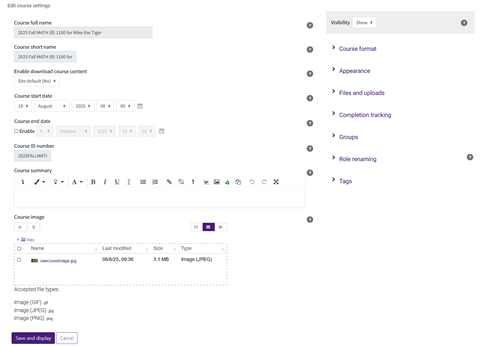
Moodle allows instructors to upload files into its database for future use. This article shows how to upload files to your Moodle course space. You can access the files that are in your course space by clicking on the Files link under the Administration Block. Students do not have access to these files until you create a link to these files from the frontpage of the course. For directions on how to make a file that has already been uploaded to your Moodle course space available to your students (link to a file), please click here.

Moodle allows you upload one file at a time. Please look below for steps to upload a compressed .ZIP file which comes in handy when wanting to upload multiple files.

1. Log in to Moodle and select the course.

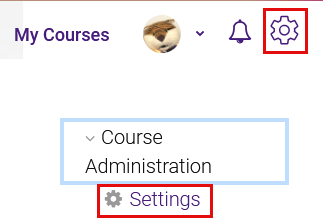
2. Click the Files link
under Administration.

Click the "Files" link under "Administration".

3. Click the Upload a file button.

Click the "Upload" a file button.


4. Click the Browse button.

Click the "Browse" button.

5. Select the file to upload, then click Open to continue. Note: Users can only upload single individual files or compressed .ZIP files. Once uploaded, Moodle allows users to unzip these .ZIP files and turn them into their own separate folder that can be used in content creation such as Displaying a file folder or Add a lightbox gallery.

Select the file or folder to upload, then click "Open" to continue.

6. Click the Upload this file button to continue.

Click the "Upload this file" button to continue.

7. Once uploaded, Moodle will give you a confirmation message at the top of the screen and the upload file or folder will appear among the other files and folders with the date and time of upload. At this point the file has been uploaded and is in Moodle's database. Steps 8-10 are specifically in regards to .ZIP files.

Once uploaded, Moodle will give you a confirmation message at the top of the screen and the upload file or folder will appear amongst the other files and folders with the date and time of upload.

8. Users have the option of unzipping uploaded .ZIP files at any point and time by clicking the Unzip link next to the .ZIP file shown in the image in step 7.

Note: This has to be done in order to use the compressed files in content creation. The current single file upload limit is 500MB.

9. Moodle will then unzip the files and place them into a folder with the same name as the .ZIP file. Once this is done, click OK to continue.

Moodle will then unzip the files and place them into a folder with the same name as the .ZIP file. Once this is done, click "OK" to continue.

10. The new unzipped folder will appear among the other files in the database and can be used in content creation, especially anything that involves using an uploaded directory which is more or less a predefined folder with specific files in it.

Note:
The .ZIP file will still remain in the database after being unzipped. It will have to be manually deleted.

he new unzipped folder will appear amongst the other files in the database and can be used in content creation, especially anything that involves using an uploaded directory which is more or less a predefined folder with specific files in it.

For directions on how to make a file that has already been uploaded to your Moodle course space available to your students (link to a file), please click here.

Search GROK from your browser:
Check out our newest feature! The GROK Search Provider allows you to utilize the GROK search engine no matter what site you're on!

Select your Internet Browser to continue:

ie7   Internet Explorer

mf  Mozilla Firefox

chrome  Google Chrome

ie8  Internet Explorer 8

camino Camino
LSU Quicklinks
Your guide to technical resources at LSU:

TigerWare Software and Applications:
http://tigerware.lsu.edu

Footprints Self-Service Tickets:
https://itservice.lsu.edu/footprints

Moodle:
http://moodle.lsu.edu

Moodle Training Resources:
http://www.lsu.edu/its/elearning/training.htm

START Computer Workshops:
http://www.lsu.edu/start/

UNI Request Form
http://newservicerequest.lsu.edu

Files2Geaux:
http://filestogeaux.lsu.edu

ITS Home Page:
http://www.lsu.edu/its

GROK: About
GROK* /grok/, var. /grohk/ vt. [from the novel "Stranger in a Strange Land", by Robert A. Heinlein, where it is a Martian word meaning literally `to drink' and metaphorically `to be one with'] The emphatic form is `grok in fullness'. 1. To understand, usually in a global sense. Connotes intimate and exhaustive knowledge. Contrast zen, which is similar supernal understanding experienced as a single brief flash. See also glark. 2. Used of programs, may connote merely sufficient understanding. "Almost all C compilers grok the `void' type these days."

Regardless of all that mumbo-jumbo, grok generally stands for understanding something thoroughly and intuitively.
""""

Information Technology Services
200 Frey Computing Center · Baton Rouge, LA 70803
Telephone: 225-578-3700 · Fax: 225-578-3709 · E-mail: helpdesk@lsu.edu

Copyright © 2006. All Rights Reserved. Official Webpage of Louisiana State University.