Windows 11: Use Network Reset
There may be broken links in this article, the GROK staff has been notified and is working to resolve the issue.
This article has not been updated recently and may contain dated material.
Network Reset can solve connection problems that might occur after upgrading versions or fix problems connecting to shared network drives. Reset removes all network adapters and adapter settings from your PC. After you restart your computer, any network adapters are reinstalled, and the settings re-enabled.
This should be your last resort.
To Use Network Reset in Windows 11:
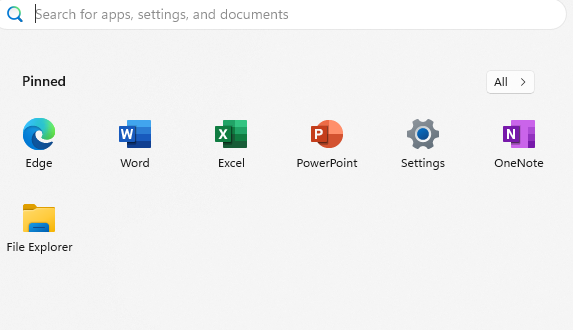
1. Click the Start button in the bottom left corner of the screen, and click on Settings.
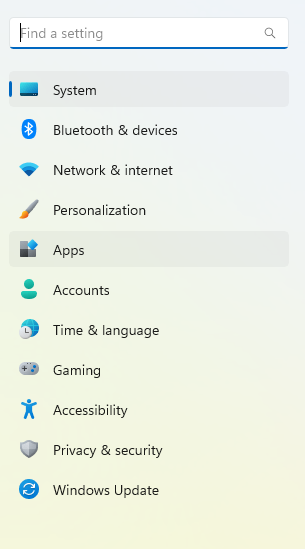
2. The Settings window should appear. Select Network & Internet.
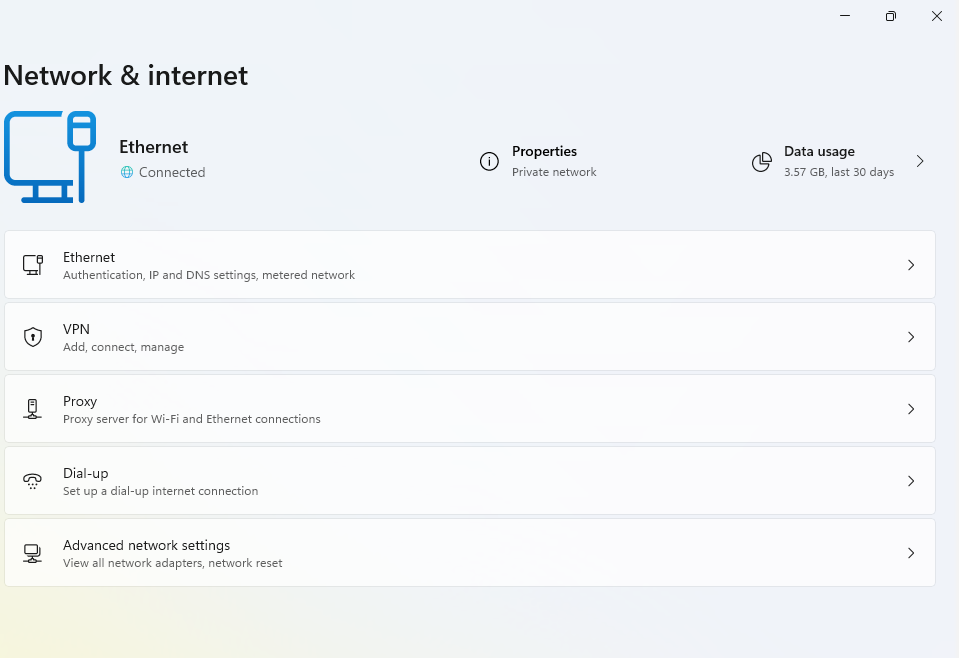
3. Select Advanced Network Settings.
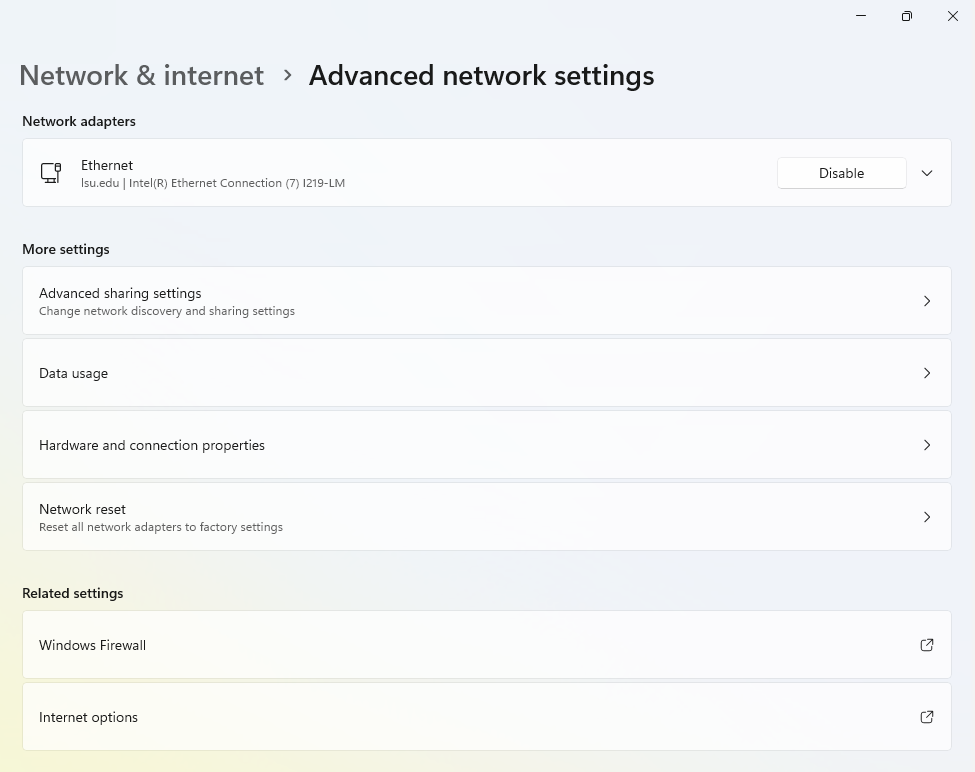
4. Next, click Network reset at the bottom of the screen.
5. To reset the network and restart the computer, click Reset now.
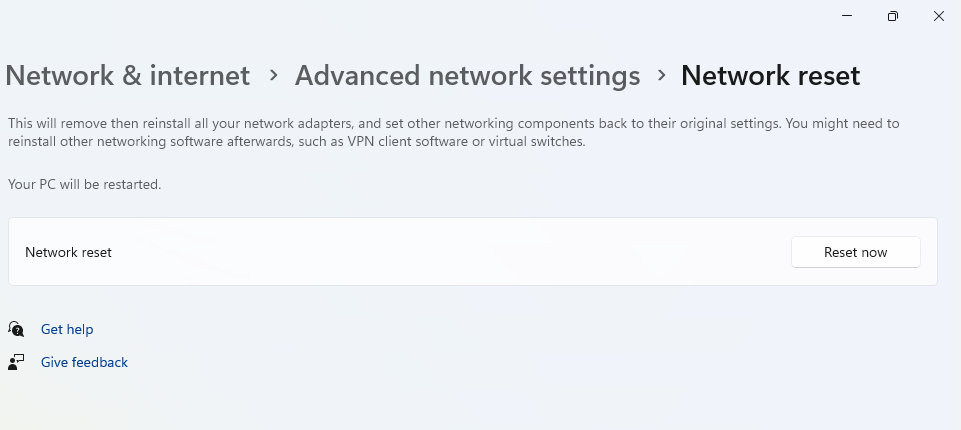
Referenced from: Microsoft
20624
2/5/2025 11:52:30 AM