Moodle: Blocks: Create Notifications in Moodle Mail
Notifications in Moodle Mail can be used to alert students of non-participation, falling within a specific grade range, and their first login to the course. These messages are sent as emails that are customized by instructors for specific situations.
Creating a Notification in Moodle Mail
- In your Moodle course, turn Editing on, open the sidebar, and click on the blocks icon. If the Moodle Mail block is not in the block drawer, follow the steps to add it in GROK 19791: Adding a Block.
- In the Moodle Mail block, click Create Notification.
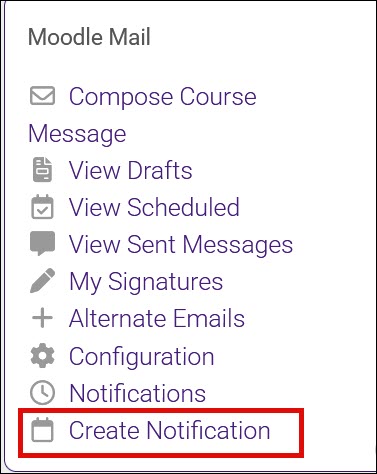
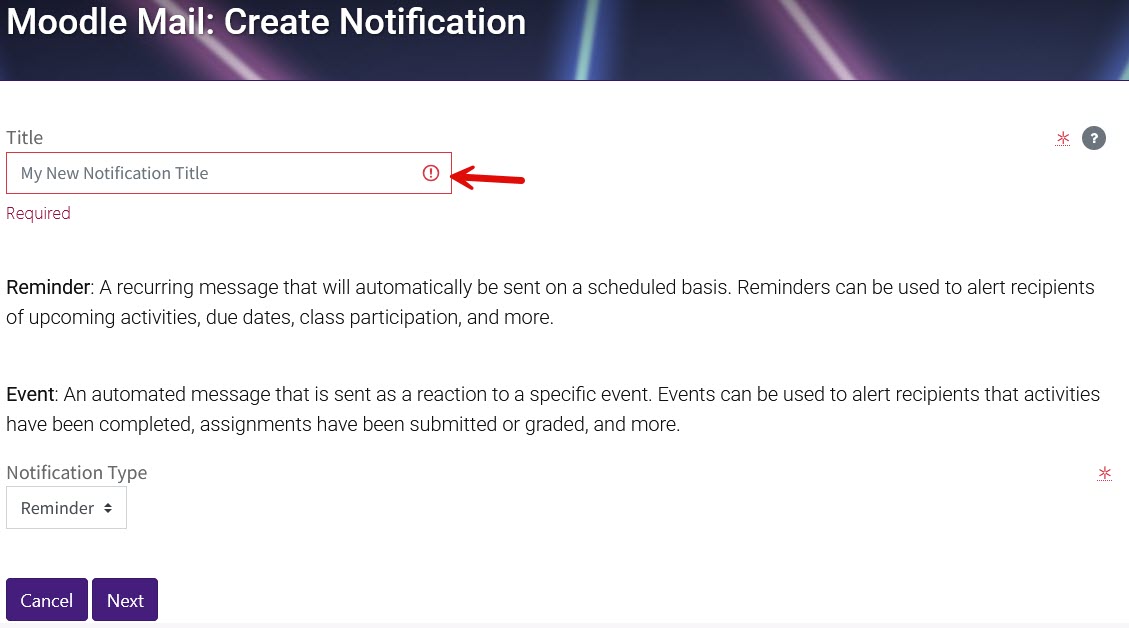
- On the notification creation page, you must first create a notification title. Then, select the Notification Type from the drop down menu and click Next.
- On the following page, select the appropriate notification model and then click Next.
- The following pages will offer options based upon the notification model selection. Enter appropriate time and scheduling parameters and click Next.
- You will now be prompted to create the notification title and body of the notification. Here you will customize the email your students will receive. When finished, click Next.
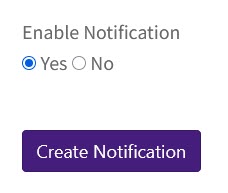
- You will now be brought to the notification overview page to review your notification and make changes to the schedule, conditions, or content if necessary. If you are satisfied, click Create Notification at the bottom of the page. Please note that if you do not click Create Notification, your notification will not be saved.
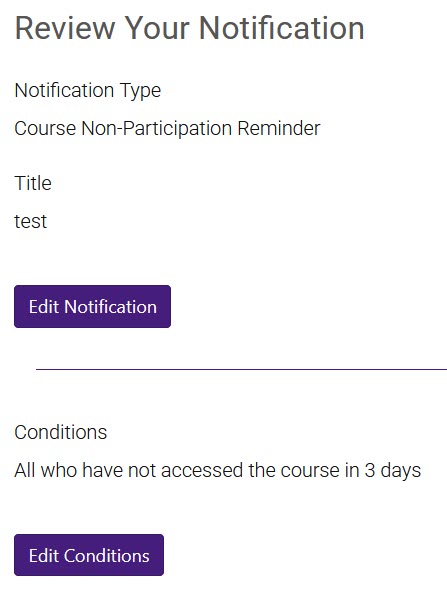
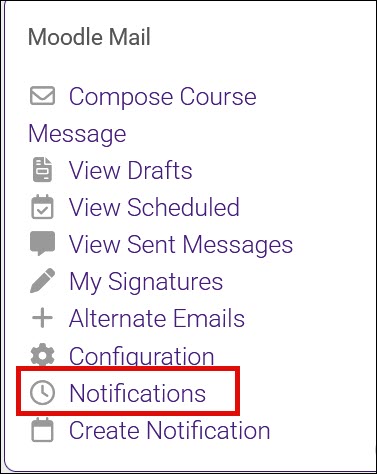
You can review created notifications from the course Moodle Mail block by clicking Notifications.
20295
4/29/2026 3:45:27 PM