Moodle: Course Tools for Students
This article has not been updated recently and may contain dated material.
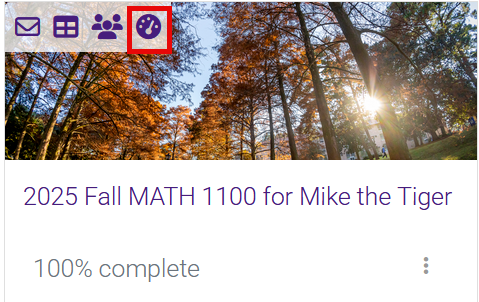
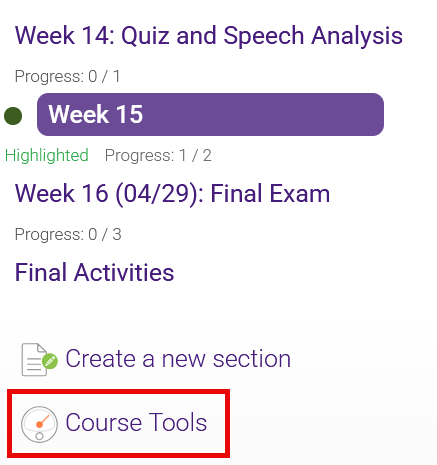
The Course Tools page contains information and links that are especially useful for managing your course. You can access it by clicking the Course Tools link either on the course card on your My Courses page:
or at the bottom of the table of contents in your course:
What is on the Course Tools Page?
Aside from the usual table of contents for course pages, the Course Tools page contains 2 sections.
-
Standard course tools for students
- User name and picture—This picture is first retrieved from the Tiger Card office, and you may later manually upload a new photo to your profile. For information on how to do this, see Moodle: Edit User picture.
- Progress graph—Your instructor may designate certain activities as counting towards progress in the course when complete. These activities may be marked complete automatically, by an instructor, or by the student. This graph shows the percentage of such activities that have been completed to indicate progress towards completion of the course.
- Grade graph—This graph shows the student's current grade for the course. Remember that if some assignments have not been graded, this grade may not be a good indicator of the likely final grade. Clicking the grade graph has the same effect as clicking the gradebook tile, described below.
- Tiles with useful links, which include the following:
 Gradebook—This tile contains a link to the full gradebook from the student's perspective.
 Students/Users—This tile provides a link to a report listing the students and instructors in the course. It includes first and last name and role in the class. The name can be clicked to get email address, city and country, links to forum and blog posts and discussions, and links to send a message or add the user to your contacts (if enabled).
- Competencies—If competencies are used in your course, you can click here to see them.
 Badges—If you have been awarded badges, you can click here to see them. These may be awarded for site-wide activities or activities in a course. See Moodle: Badges for Students for more details.
 Moodle Mail—If Moodle Mail is available to students in your course, this tile provides access to a page of icons for using Moodle Mail. The options are the same as those in the Moodle Mail Block in the course sidebar. See Moodle: Blocks: Moodle Mail Block (Students) for more details. Please note that an instructor may disable Moodle Mail for student use.
20269
1/30/2026 3:03:30 PM